TECHNOLOGY
VSCode + GitHub Copilot: Not Just for Developers
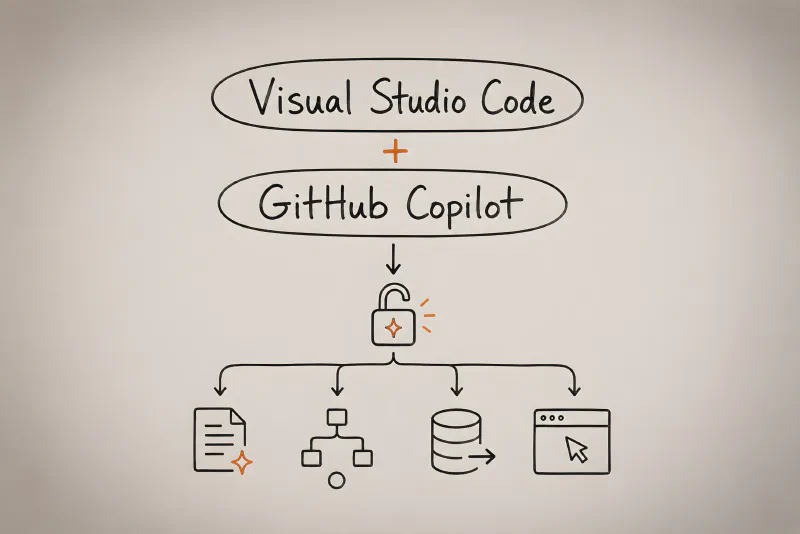
Artificial intelligence is still moving at a rapid pace, so predictions are often difficult. Still, one recent development I certainly did not have on my bingo card was non-IT functions beginning to embrace Visual Studio Code and GitHub Copilot. Yet that is precisely what I have increasingly observed at Microsoft and elsewhere: while many people continue to make enthusiastic use of Microsoft 365 Copilot, Work IQ or the new Microsoft Scout, VS Code is gaining traction among managers, business users and even people working in marketing or HR.
What explains this sudden and rather unexpected shift? Today, I want to explore this topic and provide a short overview of the capabilities of VS Code and GitHub Copilot, as well as what makes them such an attractive combination for a wide variety of use cases.
Visual Studio Code
Let’s begin by talking about Visual Studio Code. As this post is aimed at a general audience rather than just “techies”, the quick history is as follows: Back in the old millennium (in 1997 to be precise), Microsoft released Visual Studio, an integrated development environment (IDE), which is a fancy name for a program that helps software engineers write, test and debug code, usually with extensive support for particular programming languages and frameworks.
For example, an IDE highlights code syntax, suggests valid commands and offers dedicated debugging functions that help developers identify problems earlier and fix them more efficiently, alongside many other useful tools. Visual Studio became particularly closely associated with developing Windows applications and, later, software based on Microsoft technologies such as .NET and the C-family of programming languages.
It is my impression that Visual Studio enjoyed a bit of a mixed reputation. It is certainly powerful and has a loyal fan base, but it can also quickly become slow and bloated, depending on the workloads and components installed, though to be fair, many IDEs face the same issue.
As software development expanded beyond traditional desktop applications to include web services, public cloud environments, containers, Linux systems, automation, infrastructure as code and numerous scripting languages, the need for a lighter, more responsive and more flexible editor became increasingly apparent. Attempting to push all these scenarios into Visual Studio would not necessarily have been the greatest idea, either from a performance or a marketing perspective. Convincing every Java, Python or Linux developer to install Visual Studio would certainly have been an ambitious endeavor.
To address this broader set of requirements, Microsoft released an entirely new application called Visual Studio Code, or VS Code, in 2015. In a move that surprised many at the time, Microsoft made most of the code behind VS Code available through the open-source Code – OSS project. Since then, VS Code has become one of Microsoft’s central development tools and has found widespread use both inside and outside the company.
Its appeal largely comes from its broad platform support and considerable extensibility. VS Code runs on Windows, Linux and macOS, while a lighter browser-based edition is also available through vscode.dev. Browser-based development environments have recently gained traction through tools such as DevPod, which can provision reproducible workspaces locally or on remote infrastructure and open them in a browser-based VS Code environment. This approach can be particularly attractive because it is easy to manage and scale while making efficient use of shared infrastructure, especially when Kubernetes is used as the underlying platform.
Finally, Visual Studio Code’s extension system allows developers to create and publish their own extensions, for example to add support for new languages, tools, integrations or entirely new workflows. A brief glance at the application reveals the vast number of extensions available through the Marketplace, all of which can be installed with a single click.
Installing VS Code
Installing Visual Studio Code is quite straightforward. You can download the installer from the official website or use one of the common package-management tools, such as winget, Chocolatey, Homebrew or apt, depending on the operating system you are using.
Once you have installed the application, you can start using it, but its real potential lies in the aforementioned extension ecosystem. Depending on your role definition or task profile, you can install extensions from a large variety of established companies (such as Microsoft, Oracle, Google) or private contributors. Examples include extensions that automatically format and highlight a given text, interact with cloud services, provide static code analysis, automate repetitive tasks, connect to databases or add AI functionality.
The final category is the one we want to examine in greater detail, specifically GitHub Copilot and the broader agent capabilities integrated into VS Code.
GitHub Copilot
Despite sharing the Copilot name, GitHub Copilot is not simply a GitHub-specific skin for the general Microsoft Copilot chatbot. It is a distinct GitHub product designed to assist with work performed in code repositories, editors, terminals and increasingly general-purpose workspaces.
Since GitHub is primarily a software-development platform, offering functionality such as source-code repositories, issue tracking, project management and continuous integration and delivery, GitHub Copilot was originally optimized for software development. In this regard, it belongs to the same broad family of tools as OpenAI Codex, Claude Code and other agentic development assistants.
GH Copilot offers plans for both individuals and organizations. A free tier is available, allowing you to experiment without immediately committing to a paid subscription, while plans such as Pro, Pro+ and Max provide larger AI-credit allowances and access to a broader selection of models and capabilities. Organizations can instead use Copilot Business or Copilot Enterprise. To get started, simply create a GitHub account and sign in.
Once you have your account, setting up GitHub Copilot in VS Code is quite straightforward. All you need to do is navigate to the extensions tab in VS Code, search for the GH Copilot extension and install it. In newer versions, you may find that the extension is already activated by default.
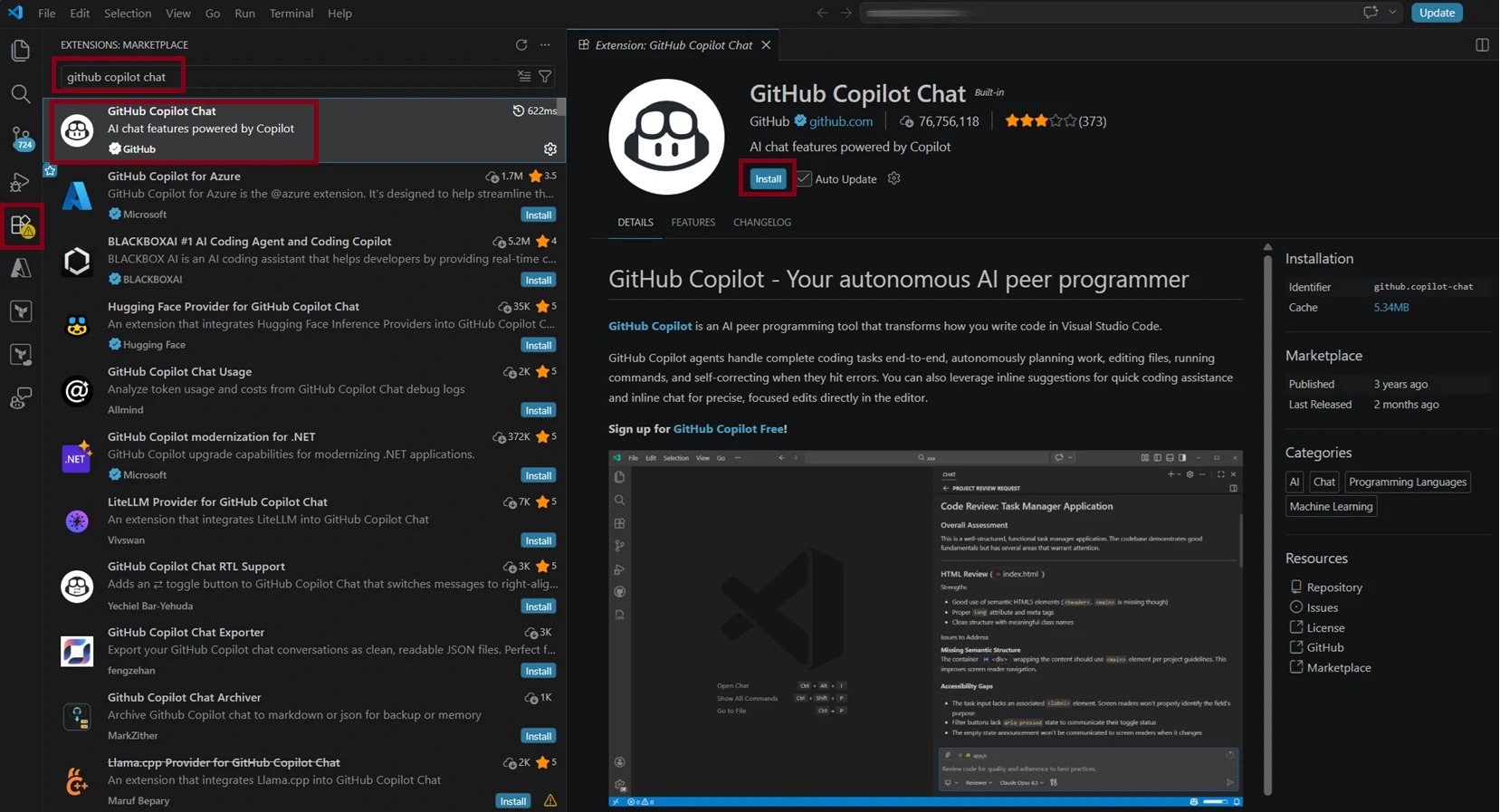
Next simply hover over the Copilot icon in the status bar and select Enable AI Features, then sign in using your GitHub account. You are now ready to begin. A more comprehensive setup guide is available here.
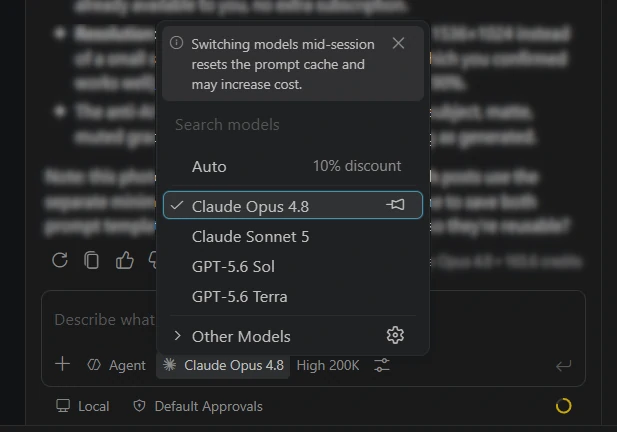
One aspect that makes GH Copilot particularly appealing is that it supports a growing selection of models from different companies, some optimized for coding, others for general-purpose use. Depending on your plan and the currently available catalogue, you may for example find models like Anthropic’s Claude (e.g. Opus and Sonnet), OpenAI’s GPT, Google’s Gemini and Microsoft’s own MAI.
Usually you will also find several different versions, including the latest one, and for some models mini versions as well. Choosing an appropriate model can minimize the number of AI credits consumed and therefore keep costs under control. GitHub Copilot also offers an automatic model-selection mode for users who do not want to make this choice manually. On paid plans, using automatic model selection currently has the added benefit of reducing the applicable model cost by an additional 10%.
Depending on the interface and model being used, VS Code can display information about the current context window and session usage. Your GitHub account also provides an overview of AI-credit consumption.
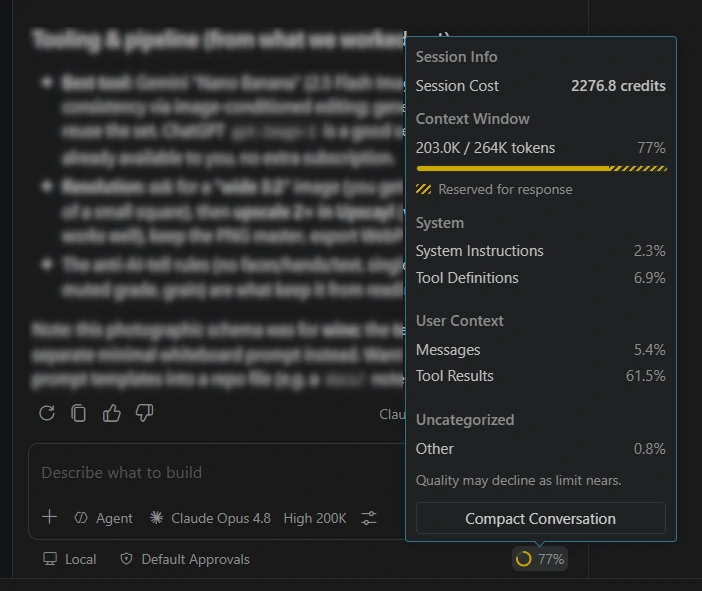
Long sessions still require some discipline. Even when a model technically supports a very large context window, filling that window with old conversations, logs, documents and repeated tool output can make it more difficult for the agent to distinguish important information from noise.
There is no universal percentage at which every model suddenly begins to “forget”, but output quality can deteriorate as the session becomes crowded or the relevant instructions become buried, which is often the case far before the context window approaches the magical 100% number. For longer projects, it is therefore often better to ask the agent to create a concise handover document, preserve the important decisions in workspace files and then continue in a fresh session.
Another good way to ensure that the models behave consistently with your personal preferences is to use custom instruction files such as claude.md or copilot-instructions.md. These are simple text files in markdown format that you put in the root folder of your workspace (for copilot-instructions.md, under a folder called .github) and the agent will pick them up automatically and adjust its responses. You can find an example of such a file below:
# Copilot Instructions for Max

## About Me
- I'm a senior Cloud Architect and Cloud Consultant with deep knowledge of infrastructure, data and AI
- I'm experienced – be direct and skip beginner explanations
- Use technical terms freely

## Communication Style
- Do NOT use emojis – keep all responses clean and professional
- Give me ONE step at a time – don't jump ahead
- Give me the full picture/overview first, then break it down

## Tone
- Be professional, concise and straightforward
- No fluff

## When Things Go Wrong
- When something breaks, explain what went wrong and why before fixing it

## Never Do This
- Don't give me walls of text
- Don't split commands such as curl over several lines, prioritize single lines

## Additional Context
- do not impersonate a human, feign feelings or try to humor mine
- do not apologize, just acknowledge an issue if appropriate
- do not make assumptions without validation or confirmation
By itself, GitHub Copilot can already work with files in your VS Code workspace, create and modify documents, write scripts, run commands and build complete applications. This is useful even when the final output is not software. An agent can, for example, transform a folder full of meeting notes into structured markdown documents, extract data from recurring reports, convert files between formats or create a small application that performs a repetitive administrative task.
Current agent modes can also divide larger activities into smaller tasks, use specialized subagents and iterate on their own output. However, their most substantial expansion beyond the local workspace comes from extensions and the Model Context Protocol.
The supercharger: Model Context Protocol
While extensions augment the functionality of VS Code itself, the Model Context Protocol, usually abbreviated to MCP, performs a similar role for AI agents. It allows the AI running inside the session to interface with external tools, thereby massively extending its capabilities.
Imagine that you paste a short text into the GitHub Copilot chat window and ask the agent to summarize it. The model can perform this task directly because summarization is one of its native capabilities and no external service is required.
Now imagine that you want the resulting summary to be sent to a colleague. The model does not automatically know which email service you use, who the recipient is or how it is permitted to access your mailbox. An appropriate MCP server can expose the required email tools to the agent, allowing it to create or send the message using an authenticated connection.
The MCP server therefore acts as a controlled intermediary. It tells the agent which actions are available, what information they require and how the external service should be called. The agent decides when to invoke a tool, while the server handles the actual interaction with the underlying system.
It gets even better: GitHub Copilot is actually able to install MCP servers itself! So instead of you having to figure out what is the correct MCP server and how to configure it, the AI can take much of this work off your hands and will automatically perform most of the required setup – if you let it.
This is one of the important caveats: For most actions, such as interacting with files, applications or services, the agent will ask for your permission and you should be diligent. While there is an equivalent to Google’s infamous “I feel lucky” search, I would highly advise against granting the agent full permissions and encourage performing a careful validation before approving any request. As worn out as the saying is: With great power comes great responsibility, and giving GH Copilot the power to delete your files or send unreviewed emails comes with considerable risks. So better trust, but verify!
Returning to a more positive note, MCP enables broad integrations with many widely used platforms. Examples include:
- GitHub MCP Server: provides access to repositories, files, pull requests, issues, workflows and related GitHub operations
- Playwright MCP: allows the agent to operate a browser, interact with web applications and verify user interfaces rather than merely assuming that generated frontend code works
- Azure MCP Server: exposes tools for inspecting and managing supported Azure resources and services
- Microsoft Work IQ MCP: connects compatible agents to permission-aware Microsoft 365 information and tools, including email, meetings, documents, Teams data and workplace context
- Dataverse MCP: allows compatible agents to read and modify Dataverse tables and records, including data used by Power Apps and Dynamics 365
- Google Workspace MCP servers: provide access to supported Google Workspace services such as Gmail, Drive, Docs, Sheets and Chat, although several of these capabilities remain in developer preview
- Atlassian Rovo MCP: connects compatible agents to products including Jira, Confluence, Jira Service Management, Compass and Bitbucket
- Salesforce Hosted MCP Servers: expose Salesforce data, queries, flows, Apex actions and other platform capabilities to compatible clients
- ServiceNow MCP servers: expose governed ServiceNow tools and actions for workflows involving areas such as IT service management, HR and custom applications
It’s important to note that new MCP servers are being added daily and it is also possible to create your own servers, thus allowing models to interact with internal or proprietary applications through a controlled and documented interface.
Use cases
Taken together, these capabilities mean that GitHub Copilot in VS Code can be used for far more than software development. Possible business use cases include:
- turning workshop transcripts, meeting notes and discussions into summaries, actions, decisions and next steps, then creating the corresponding items directly in a task-management system
- cleaning messy reports or spreadsheets by deduplicating, normalizing and restructuring their data
- gaining relevant insights by analyzing and synthesizing different data sources, such as documents, spreadsheets, transcripts or presentations
- automatically creating summaries, briefing notes or presentation decks
- creating small internal tools for activities that would otherwise require repetitive manual work
When should you use which tool?
What sets it apart from Microsoft 365 Copilot?
Compared with Microsoft 365 Copilot, GitHub Copilot in VS Code offers several important advantages:
- direct read and write access to files in a defined workspace
- access to additional applications, APIs and data sources through extensions and MCP servers
- the ability to write and execute scripts or complete programs for consistent, repeatable processing
- built-in integration with Git and other version-control systems
- a broad choice of models from several providers
- considerably more control over instructions, tools, project structure and the execution environment
- better support for work that involves many files, several processing stages or repeated validation
For example, imagine that your organization receives a set of surveys or contracts every month and needs to extract the same information from each one. Microsoft 365 Copilot may be able to analyse individual documents or help you design the process, but GitHub Copilot can also create a script or application that performs the extraction consistently, stores the output in a defined structure, validates it and records every change.
Microsoft 365 Copilot nevertheless remains extremely useful. Its native integration with Outlook, Teams, Word, Excel, PowerPoint and SharePoint makes it more convenient for everyday productivity tasks performed directly inside those applications. It is generally the better choice when you want to summarize an email thread, improve a document already open in Word, analyse a spreadsheet interactively or produce a presentation without constructing a separate workflow.
VS Code with GitHub Copilot becomes more attractive when the work is complex, file-centric, iterative, technical or intended to become repeatable. The distinction is therefore not that one product is universally more capable, but that they provide different working environments.
How does it compare to the overall AI tool landscape?
- compared with general AI assistants such as ChatGPT, Gemini or Perplexity: GitHub Copilot is better suited to file-centric, multi-stage and repeatable workflows, while general assistants are usually more convenient for quick research, brainstorming and isolated questions
- compared with agentic workspaces such as Cursor or Claude Code: GitHub Copilot benefits from the mature VS Code and GitHub ecosystems, while competing tools may offer a more tightly integrated, AI-first experience or stronger alignment with a particular model provider
- compared with always-available personal AI assistants such as OpenClaw or Microsoft Scout: GitHub Copilot is better suited to deliberate, project-based work within a controlled workspace, while personal agents are more useful for persistent, proactive assistance across applications, devices and communication channels
Conclusion
VS Code and GitHub Copilot may still look like tools intended exclusively for software engineers, but that appearance is increasingly deceptive.
A modern VS Code workspace can contain documents, spreadsheets, transcripts, templates, instructions, scripts and structured business data just as easily as source code. GitHub Copilot can work across these materials, while extensions and MCP servers allow it to interact with external tools and services. Furthermore, it does not simply allow you to work with these artifacts, but do so in a methodical and grounded way, by versioning outputs and producing entire workflows through code.
This combination will not replace Microsoft 365 Copilot, general AI assistants or more autonomous products such as Microsoft Scout. What it offers is a highly configurable middle ground: more structured and repeatable than a conventional chatbot conversation, but more deliberate and controllable than an always-on autonomous agent.
That makes it particularly interesting for analysts, architects, managers, consultants, marketers, HR professionals and any other kind of knowledge worker whose job involves complex information, recurring processes or many interconnected tools. So to close the circle: VS Code may have originally been conceived as a development tool, but AI enables us all to develop and old borders are fading.
Give it a try and see for yourself!